
Trader is our paid guide to flipping. It follows your Grand Exchange offers through RuneLite and tells you what to do next. But it only did that while you were looking at it. If you switched tabs to check the Wiki, Trader stopped checking, and nothing told you when a buy finished. This update fixes that, and tidies up a few other things. Here’s what’s new:
Trader keeps watching. Trader keeps following your offers from another tab, and its tab title shows your next step.
Alerts, if you want them. Turn on a notification, a sound or both, and Trader tells you when a trade needs you.
Game Updates. Market Updates is now called Game Updates, and lives next to the Items pages.
A tidier account menu. Your settings get their own page, and a dot on your account button tells you about new posts like this one.
Fewer surprises. Clearer budget errors, a safer Disconnect button, and help that doesn’t lose your connection.
Trader keeps watching when you look away
Before, Trader only checked your RuneLite files while its tab was on screen. Now it keeps checking from a background tab, about every 30 seconds. When you come back, it checks again right away and gets fresh prices.
Trader’s tab title now shows your next step, like “Sell Rune bar” or “Collect GP from Rune bar”. You can see it from any tab, even while you’re looking at the Market or the Wiki. It only changes when there’s something for you to do in the game. Waiting for an offer to fill doesn’t change it.
Next to “RuneLite connected”, Trader now shows when your Grand Exchange last changed, like “GE change 2m ago”. So you can tell “nothing happened yet” from “something stopped working”.
Alerts, if you want them
Trader can also tell you when a trade needs you, with a notification, a sound or both. Both are off until you turn them on. To turn them on, open the account menu and choose Settings. They’re under Trader Alerts on This Computer. You can also select “Get a notification when that happens” on Trader’s “All caught up” screen.
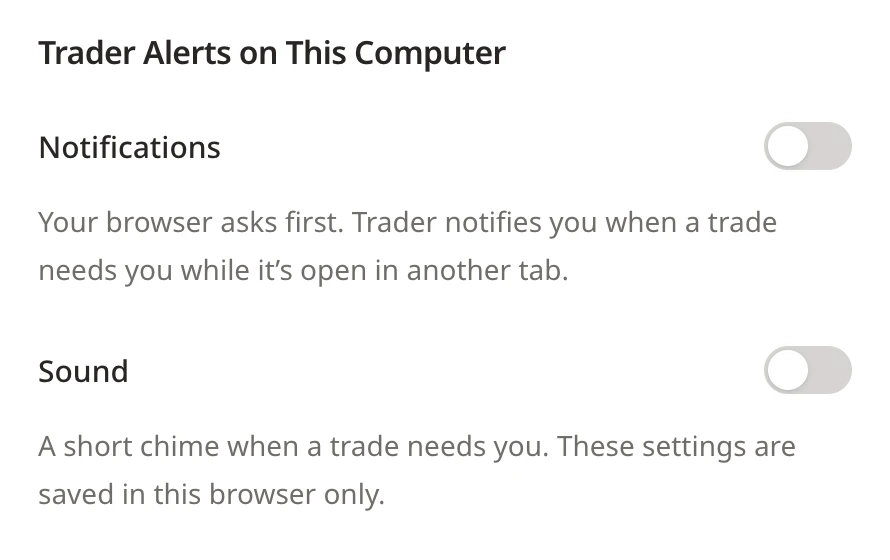
An alert comes when a new step appears while you’re looking at something else:
- A buy finished, so it’s time to sell.
- A sale finished, so it’s time to collect your GP.
- An offer needs a new price, or a trade needs a second look.
Your browser asks you first before Trader can show notifications. A new alert replaces the last one, so they don’t pile up. Click it, and Trader opens right where you left it, still connected to RuneLite.
Market Updates is now Game Updates
Market Updates showed which tradeable items each official OSRS update adds or changes. That’s what players call game updates, so that’s its new name: Game Updates. Its new home is next to the Items pages, which already show the game updates that changed each item.
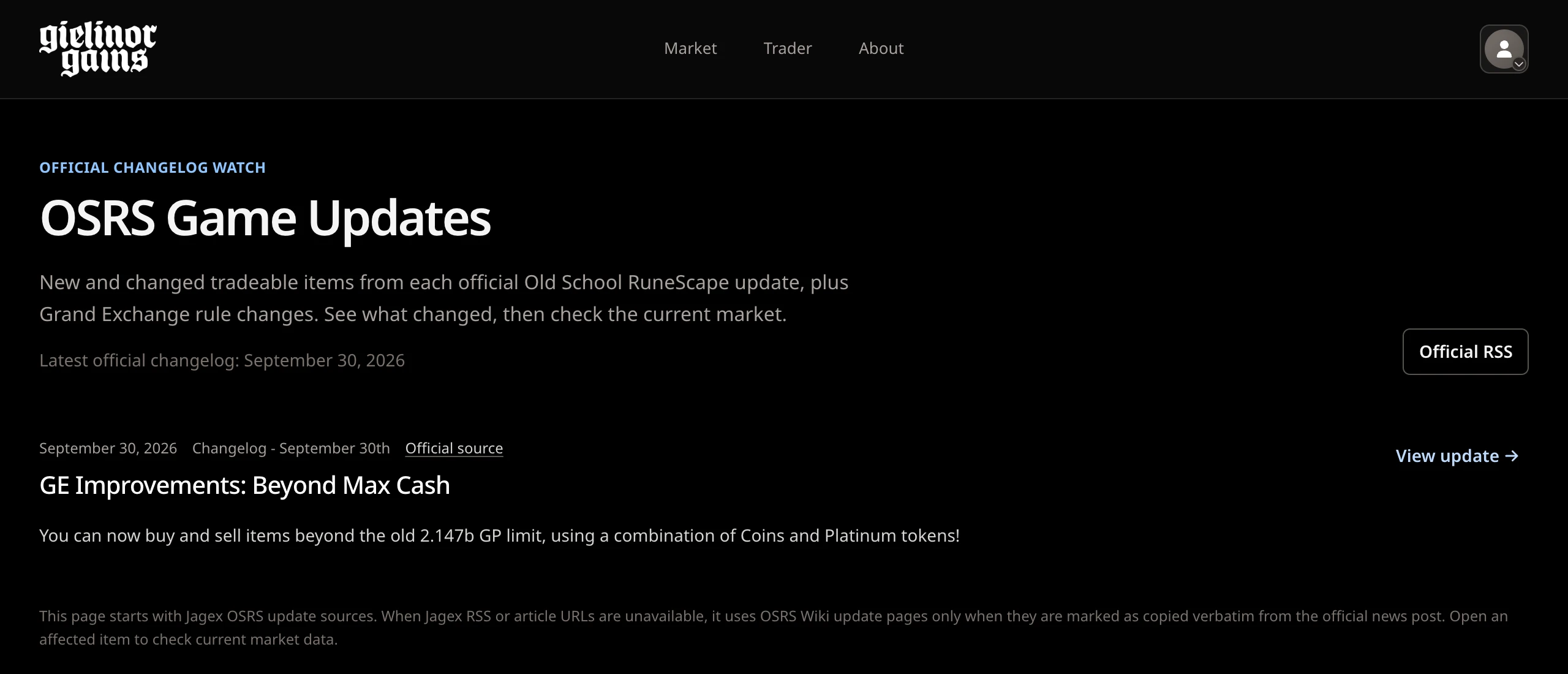
- Find it from the Items page or at the bottom of every page.
- Old links still work. They take you to the new page.
- It left the account menu, which is now for your account.
A tidier account menu
The account menu is shorter and grouped, like the menus in apps you already use:
- Your settings have their own page now: how you sign in, what the Market shows, your emails and Trader alerts. The menu just links to it.
- When there’s a new post, a blue dot appears on your account button. Open the menu, and Platform Updates shows the post’s title.
- The menu has three groups: Settings and billing, then Platform Updates and Help & Status, then Sign Out.
- If you aren’t signed in, a Sign in button takes the account button’s place.
- The privacy, terms and refund policies moved out of the menu. They’re at the bottom of every page.

Fixes that save you time
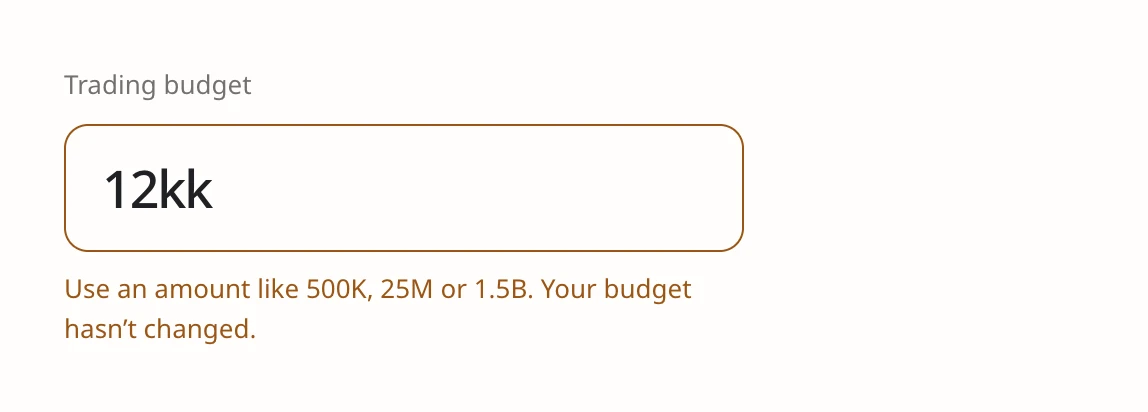
The trading budget box used to ignore some typing without saying why. You couldn’t even type 0.5M. Now it keeps what you type, and if it can’t use it, it tells you when you leave the box:
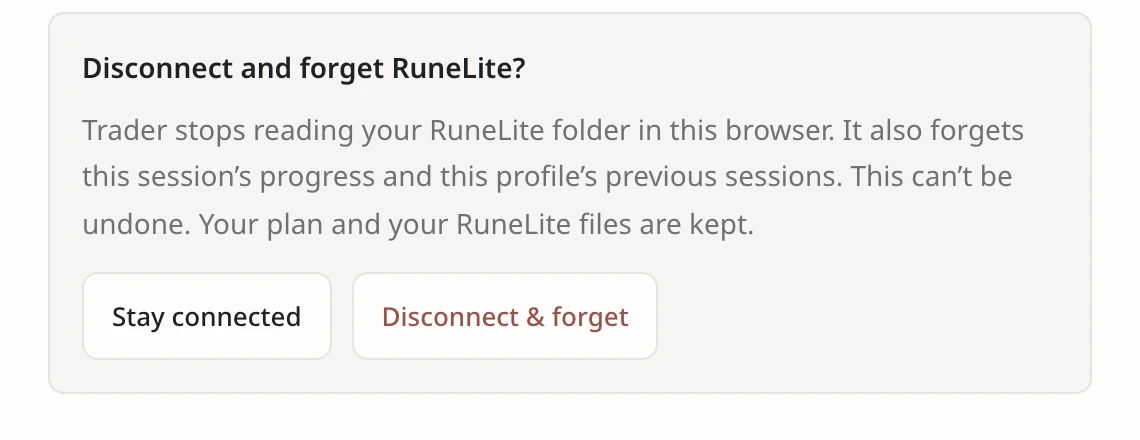
“Disconnect & forget” also clears your session’s progress and past sessions. Now it asks first:
- Get help opens in a new tab, so Trader stays connected to RuneLite.
- If prices can’t load, Trader says so, instead of saying there are no good trades. It keeps trying in the background.
- On your Grand Exchange slots, the up and down arrow keys now move to the slot above or below, whether you see 3, 4 or 8 slots in a row.
What to keep in mind
- Alerts only work while Trader is open in a tab on the computer where you play. Closing the tab or the browser stops them.
- Trader checks a background tab about every 30 seconds, so an alert can come up to about half a minute after the game saves.
- Your browser decides whether to show notifications. If you blocked them for our site, the switch explains how to allow them.
- Some browsers only play sounds after you’ve clicked somewhere on the page.
- We tested notifications in Chrome. Safari can’t follow RuneLite’s files, so it can’t send alerts. Phones can’t connect to RuneLite.
- We never trade for you. You place every offer yourself, in the game.
How we tested
Each change has automated tests, and they all pass. We also tried each change on a private copy of the site with test accounts and sample prices. We stepped through practice trades to check that the tab title followed each step. With Chrome’s notifications allowed and its window in the background, a finished buy showed one notification, “Sell Robin hood hat”. Price updates on the same trade didn’t show more. We also checked that old Market Updates links take you to the new Game Updates page.
What’s next
Next, we want to make placing an offer faster, with less typing and fewer clicks. As always, when something gets in your way, we’ll fix it and tell you here.